WhatsApp Messaging Guide
If your account has WhatsApp enabled, agents can send and receive WhatsApp messages without leaving HubSpot. This guide covers both directions.
Sending an outbound WhatsApp message
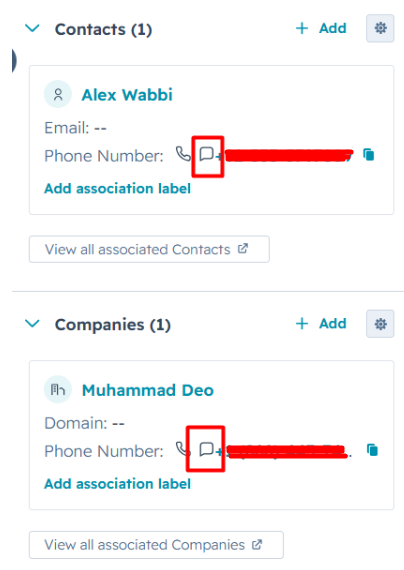
- Find a phone number field on a contact, deal, company, or ticket record in HubSpot.
- Click the message button next to the field — a WhatsApp panel opens as a popover.
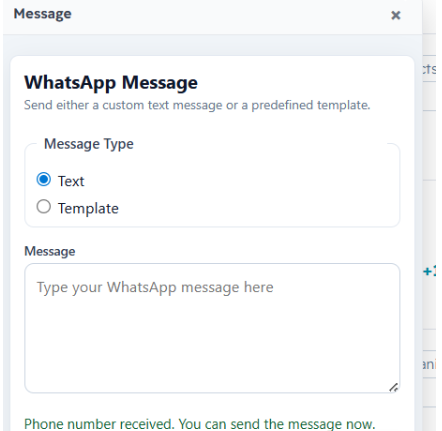
- Choose how you want to send:
- Template — pick from your account's approved WhatsApp message templates. If the template has variables (e.g. a customer name or order number), fill them in before sending.
- Free text — type a message directly. Free-text messages are only deliverable within an active WhatsApp conversation window; outside that window, WhatsApp requires an approved template.
- Click Send.
What happens after you send
- The message is delivered through your account's WhatsApp provider.
- A communication engagement is created on the matched HubSpot contact automatically, so the message is visible in the contact's timeline alongside calls and notes.
- If HubSpot can't be reached immediately, the message is still sent to the customer and the HubSpot record is updated shortly after — you don't need to retry anything.
Receiving inbound WhatsApp
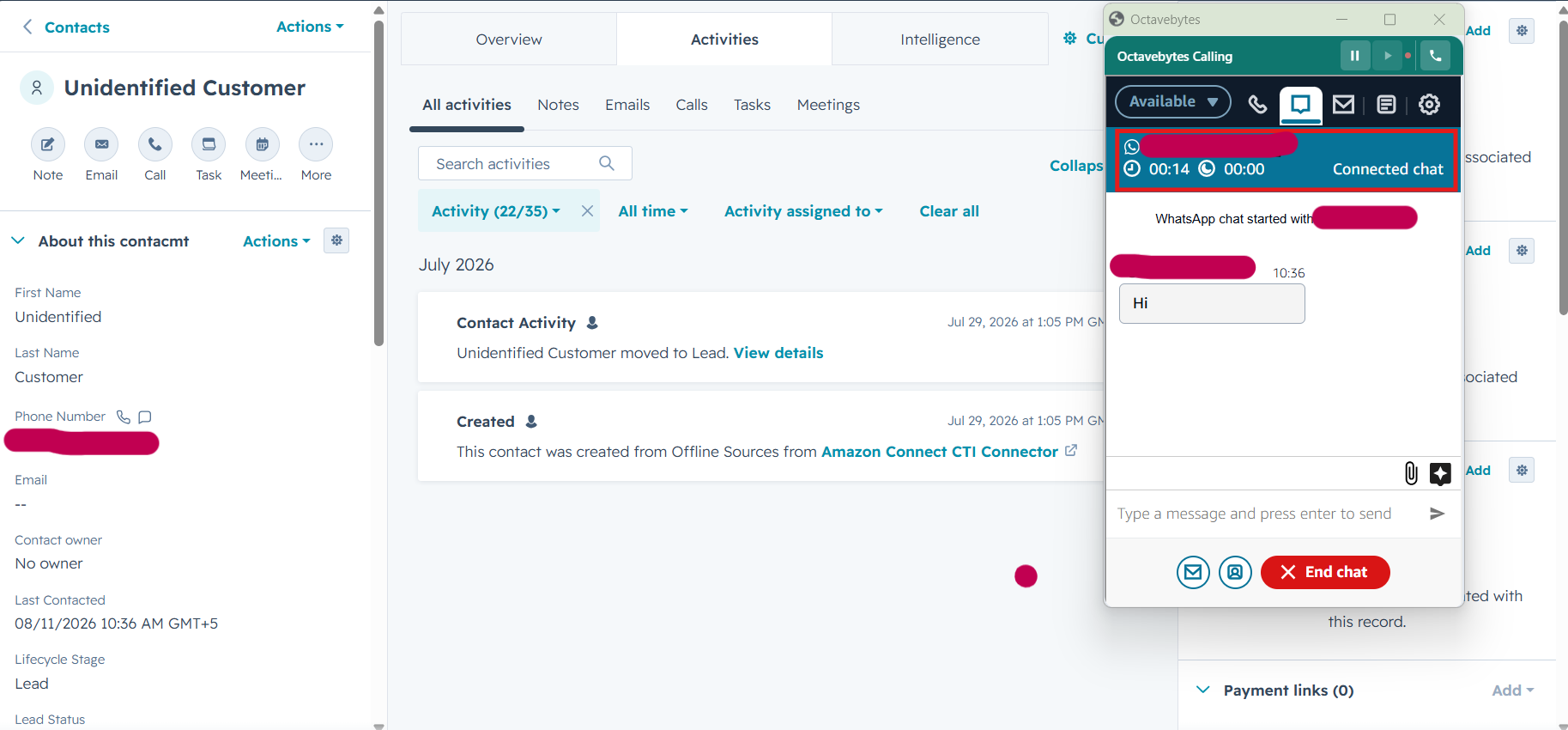
Inbound WhatsApp messages arrive through the same AWS Connect chat channel as regular chat, so they behave just like an inbound chat for screenpop purposes:
- The connector looks up the sender's phone number and opens the matching HubSpot contact automatically.
- If there's no match, a new contact is created.
- If there are multiple matches, you'll see the same picker used for inbound calls — see the Agent User Guide for details.
Troubleshooting
See Troubleshooting & FAQ if a message won't send, a template doesn't appear, or the WhatsApp panel doesn't open.